This is a test of a from scratch installation of Codesys through the Codesys Installer program and to explore what features it offers to build upon manual separate installations. Let us see what Codesys themselves say about this program:
The CODESYS Installer manages the local installations of different CODESYS versions and provides support for their deployment and update
https://store.codesys.com/en/codesys-installer.html
Codesys Installer
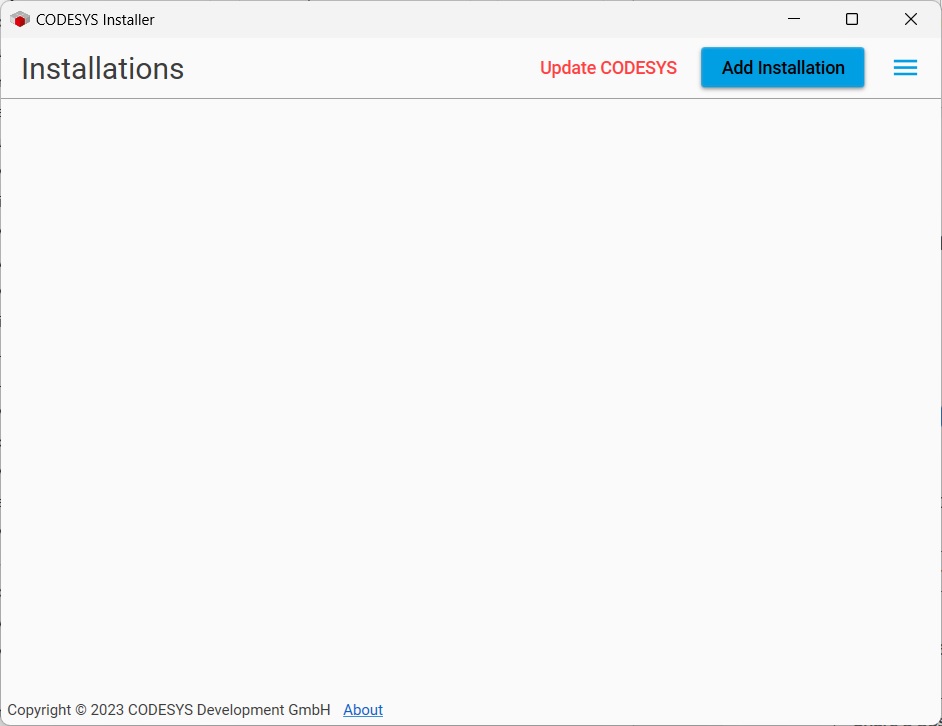
Once the Codesys Installer has been installed, it present an empty view of current installations. The highlighted blue button “Add Installation” can be used to install the free CODESYS Development System V3.
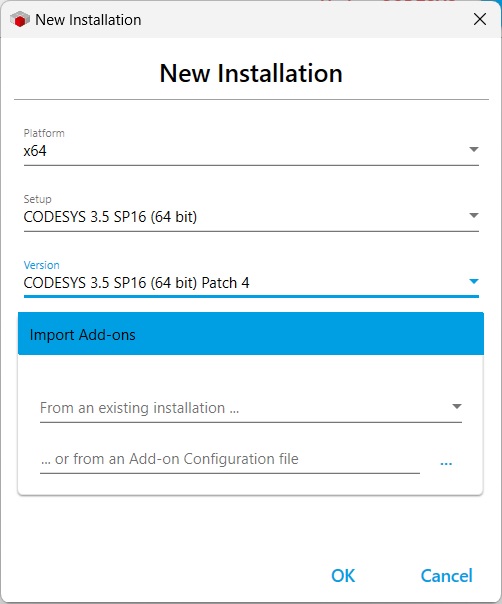
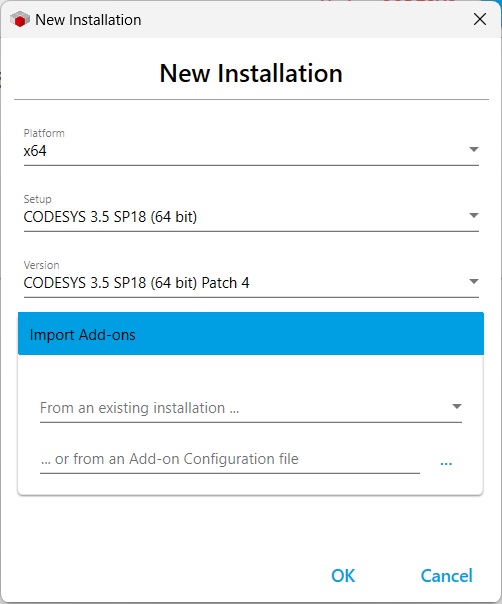
I chose to install a version of Codesys IDE that I have several controllers using. That is the Codesys version 3.5.16.40. This is imply chosen in drop down menus.
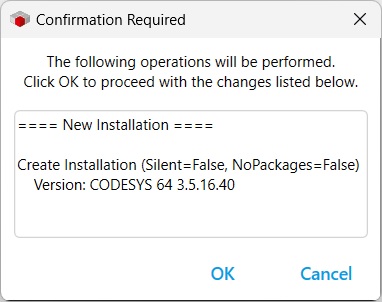
A detailed view of software being installed is presented, giving a last resort of cancel before installation. Check this list carefully for versions being overwritten, that you did not intend!
Codesys Installer automatically downloads and installs the selected IDE.
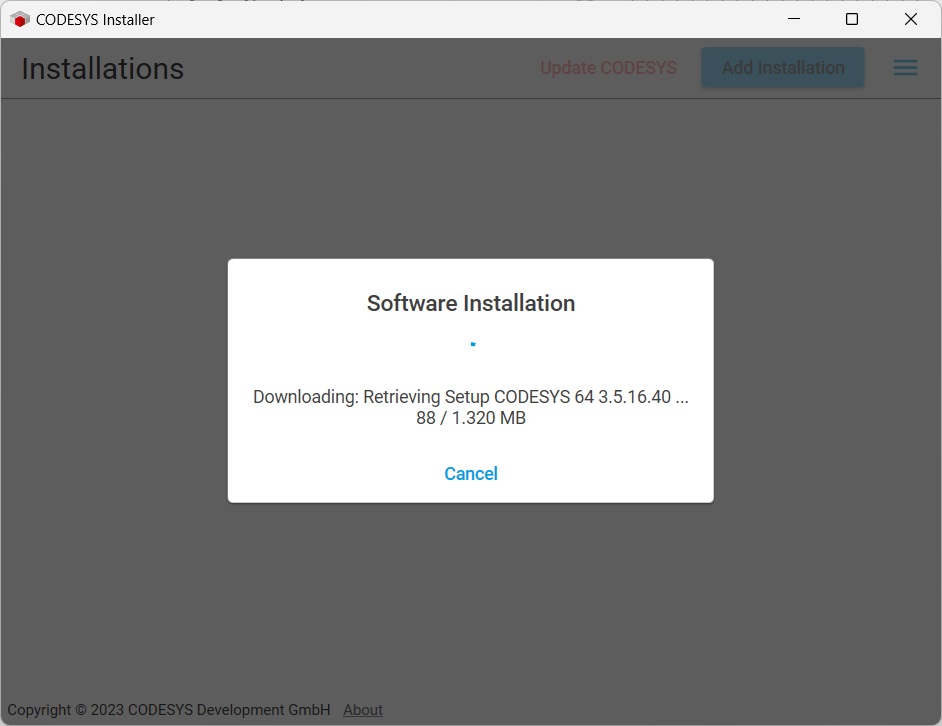
With the installation of Codesys IDE 3.5.16.40 done, I wanted to install the latest version as well. This happened to be the Codesys IDE 3.5.18.40.
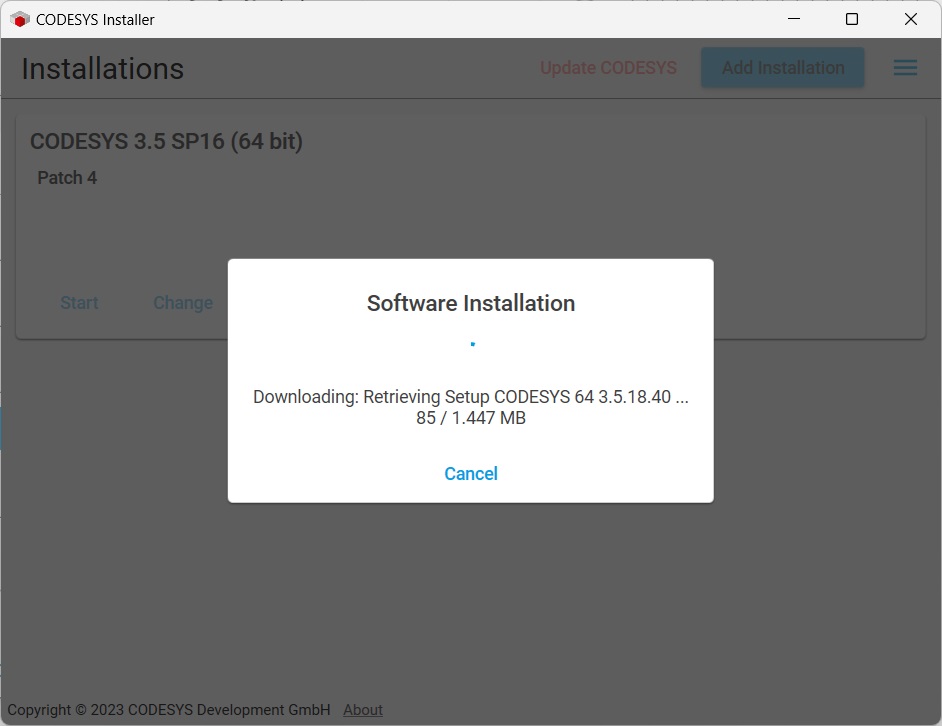
Codesys Installer automatically downloads and installs the selected IDE.
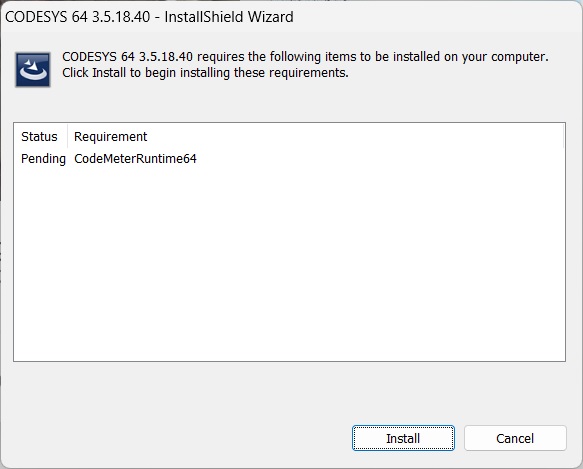
When download is finished, a InstallShield Wizard guides you through installing the required components.
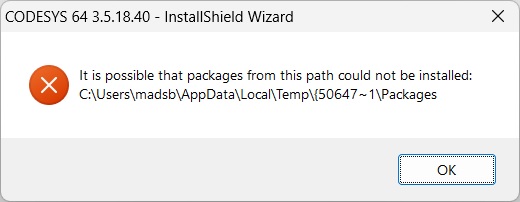
Somewhere along the installation, I got this popup error. It seems like a temporary file has been deleted too soon. It does not seem to affect the installation or running the program afterwards.
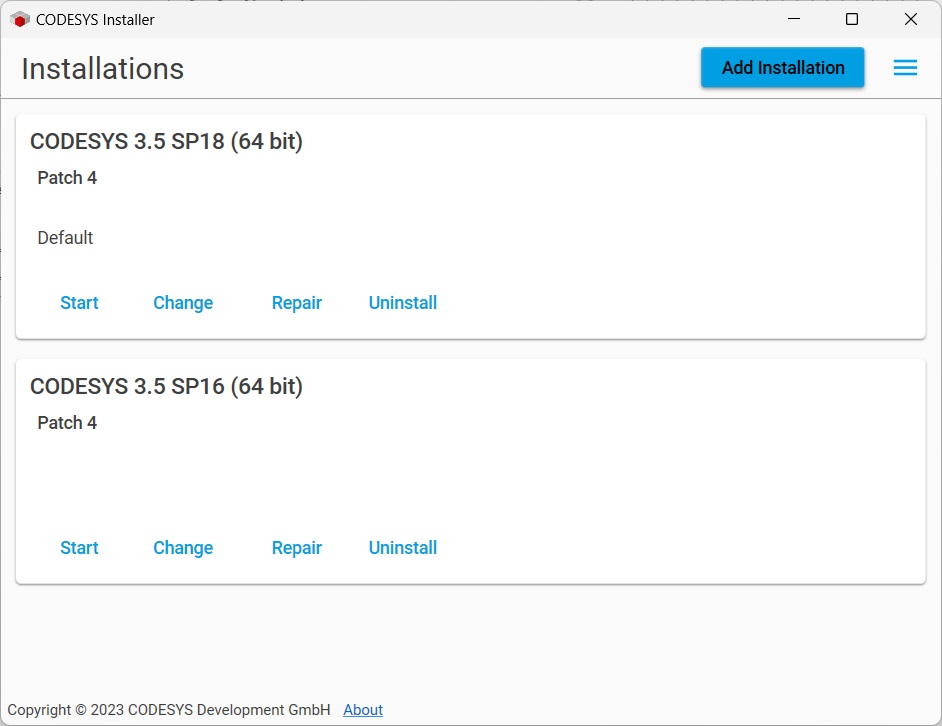
The Codesys Installer now shows the two installed versions of Codesys IDE.
Clicking “Change” on a Codesys installation brings up a dialog where you can browse the packages previously known from the Codesys Store. It is very convenient to just search, select and install packages this way, instead of downloading multiply install files.
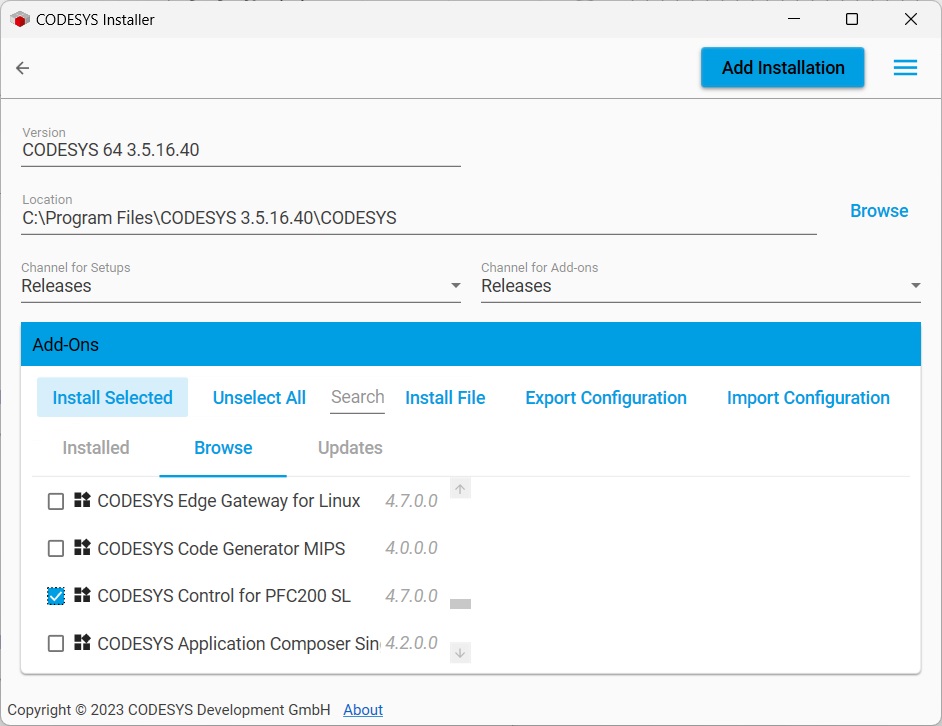
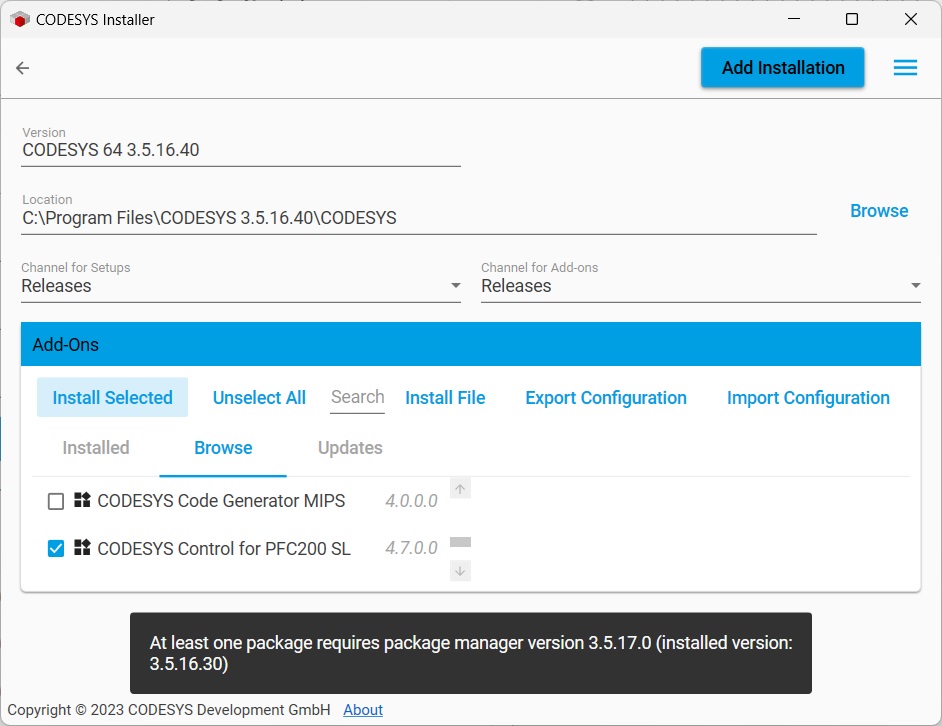
This installation feature is however only supported from version Codesys Package Manager 3.5.17.00 and up. Unfortunately it does not work for Codesys IDE 3.5.16.40.
Once a IDE has been set up with packages, the configuration can be exported to ease installation and setup on a new PC.
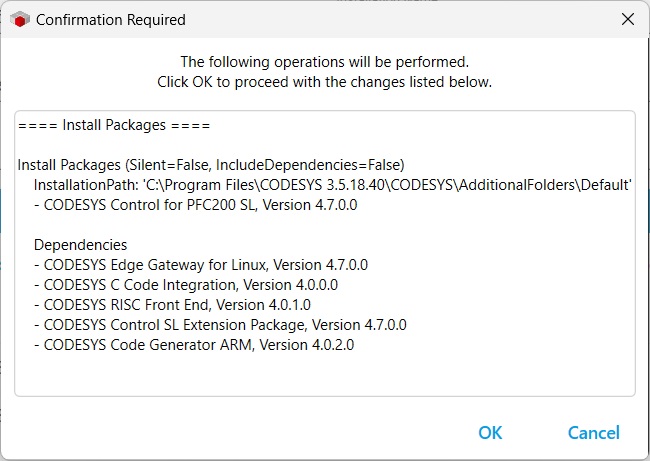
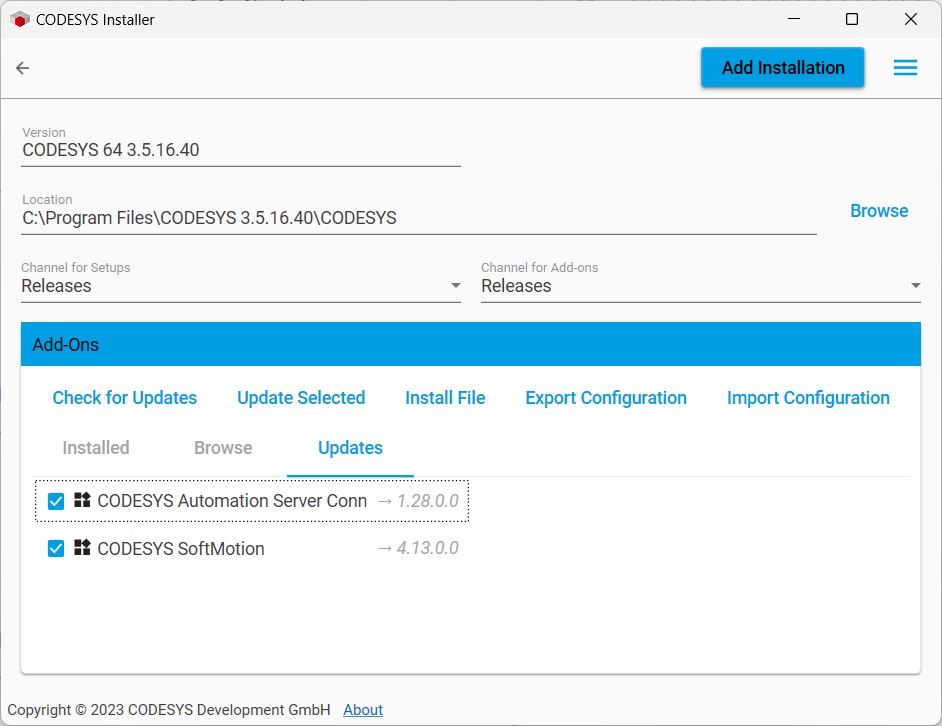
I repeated the above steps, of installing the CODESYS Control for PFC200 SL, Version 4.7.0.0 for the Codesys IDE 3.5 SP18 Patch 4 installation. A popup informs of what is being installed and the dependencies that will be installed as well.
Installation of all packages is automatic and requires no manual actions. Nice!
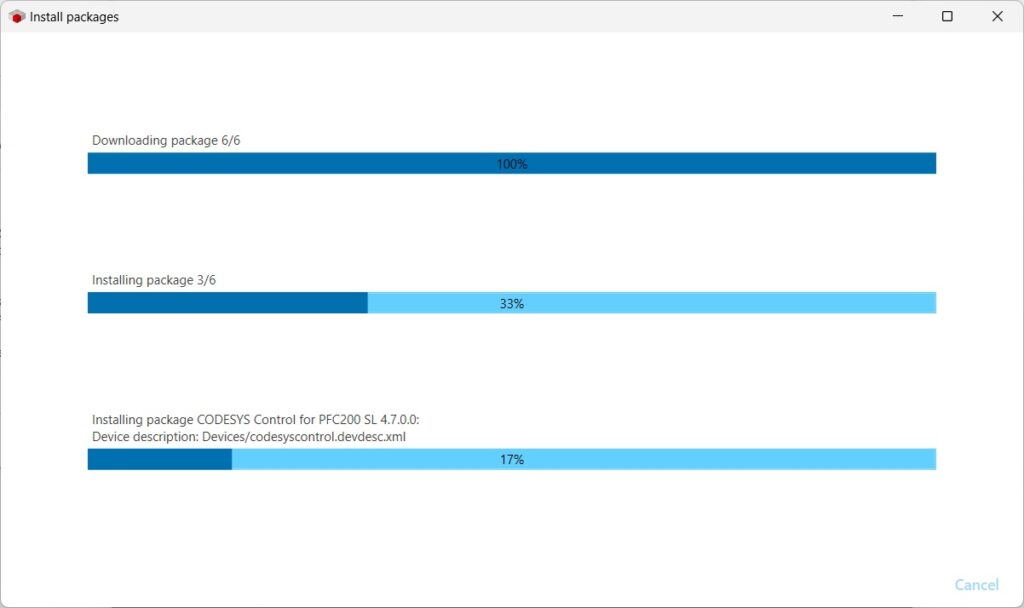
The blue 3 line hamburger menu in the upper right corner, controls the 3 different views of the Codesys Installer. Right now we are looking at the “Installations” view.
“Check for Updates” will trigger a online lookup for updates to the installed packages and patches for the installed service pack versions.
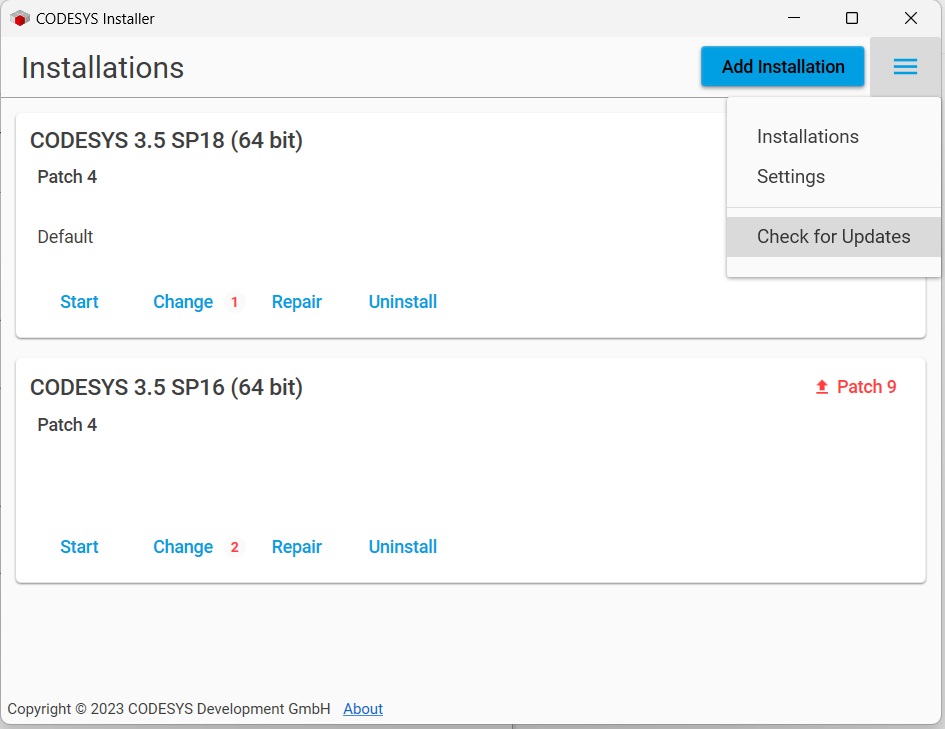
Under “Settings” it is possible to choose the default Codesys Gateway and Codesys Control Win versions.
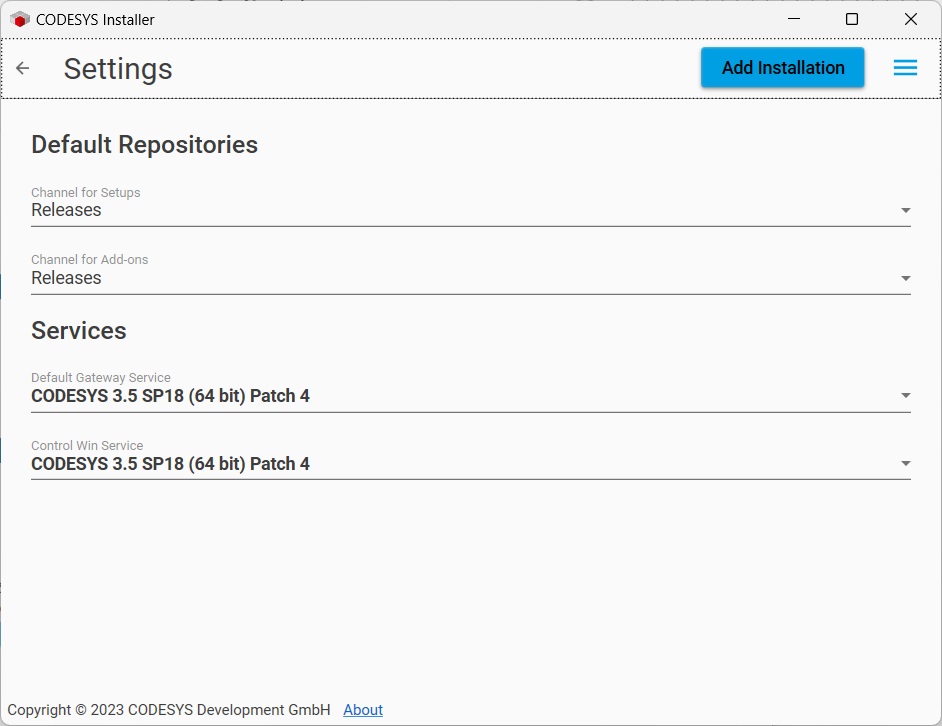
Inspecting a Codesys installation that was flagged with updates, read number 2, next to the Change text in the previous screenshot, brings up a view of the latest available versions.
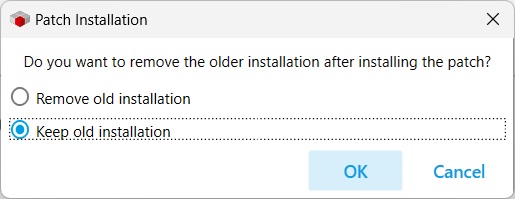
Installing a patch 9 for Codesys 64 3.5.16.40, brings up a question about removing the old installation or keeping it. I will always recommend keeping your old installations, as certain versions are not compatible forward or backwards. Like project file versions on each their side of the SP 16 and SP 17 IDE.
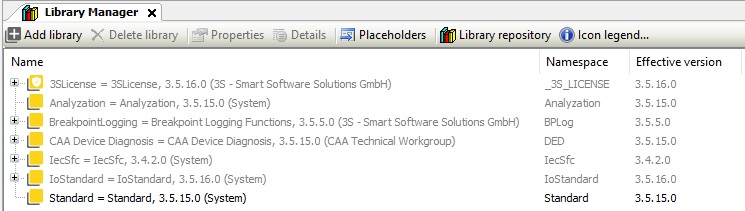
This is a view of my installed Codesys 3.5 SP 16 Patch 4 libraries prior to the installation of Codesys 3.5 SP 18 Patch 4. There was a major change in SP 17 which introduced signed libraries and project files saved in SP 17 and forward, can not be used in SP 16 and backwards IDEs.
This is a view of my installed Codesys 3.5 SP 16 Patch 4 libraries after the installation of Codesys 3.5 SP 18 Patch 4. Notice how some libraries got substituted with the signed SP 17 and SP 18 versions. This results in issues when working with other people, sharing a Codesys 3.5 SP 16 project, as the versions I save, now has pointers to non-existing libraries in their installations.
The fix here lies in inspecting the affected libraries with “Placeholders” and if the listed libraries are “Resolved by device”, you will have to replace your Device with the correct runtime version that you wish for. To even see the older versions, you have to tick off “Display all versions (for experts only!)” to be able to choose them.
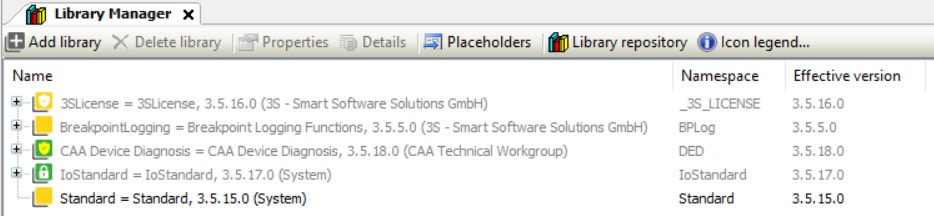
Codesys 3.5 SP 18 Patch 4 is all happy and with a complete set of signed libraries.

Codesys Installer conclusion
Codesys Installer offers a nice set of features that will save you time browsing the Codesys Store for packages and IDE versions.
There is however still some issues around having simultaneously installations prior to, and after Codesys 3.5 SP 17. Make sure to do some tests, before jumping into newer versions that SP 17, if you have older SP 16 projects still being used.
Discover more from SCADA, PLC and Automation Engineering
Subscribe to get the latest posts sent to your email.