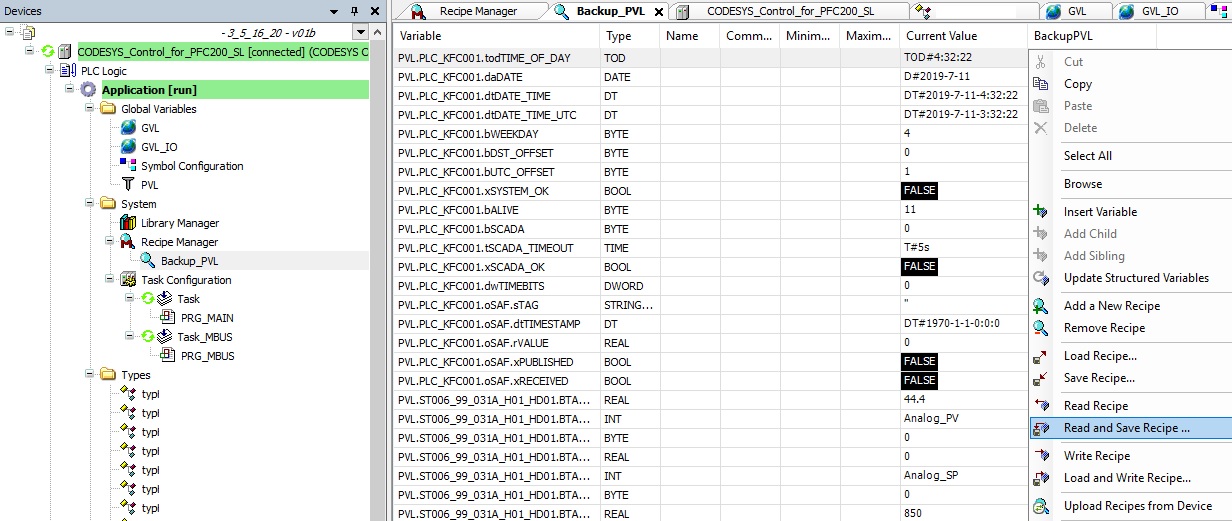
The Recipe Manager package in Codesys can be used to store user and operator values in a file or multiply files with different values. In this example I use it to backup all my operating parameters of a controller. The values are usually saved in the Persistent Variable List, called PVL.
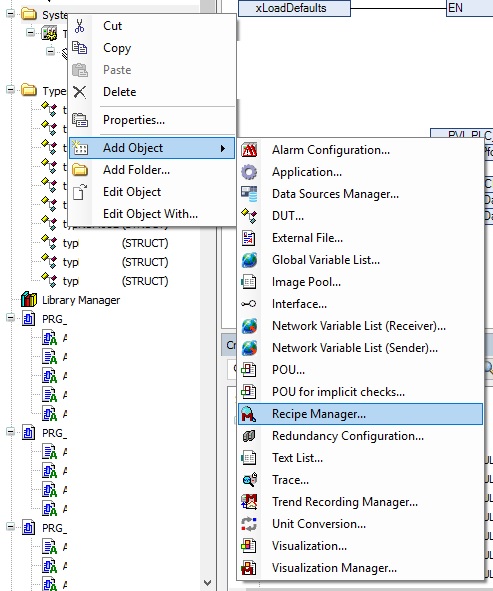
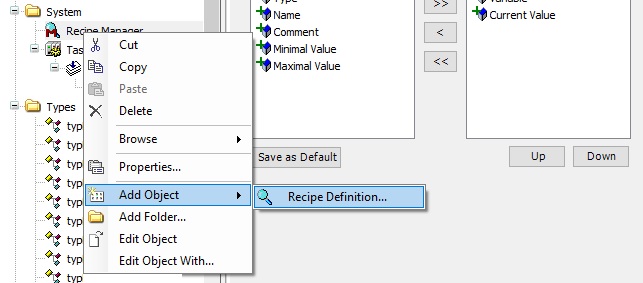
Add a new object to your project and select the “Recipe Manager”
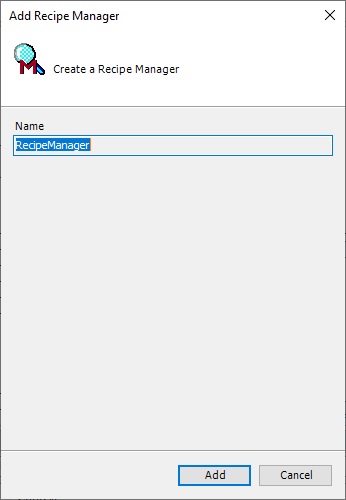
I keep the default name of the recipe manager object.
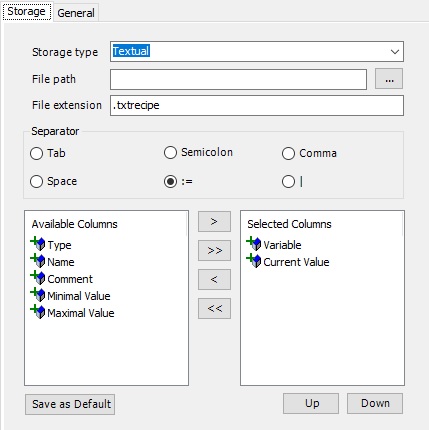
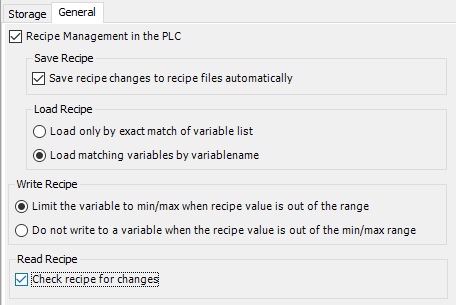
The settings for the storage type and amount of data in the recipe can be determined from the available list. I like to keep the storage type textual and with := separator. This way you can actually copy/paste parts of the saved recipe directly into your Codesys code.
Here I have only two changes from default values. I use “Load matching variables by variablename” so that a incomplete or updated recipe can be used even after changes are made. This is a important decision depending on your application, some recipes needs to be exact! “check recipe for changes” is also checked.
A new Recipe Definition is needed, this is the template with the list of values to be able to save recipes for, it is not a recipe in itself.
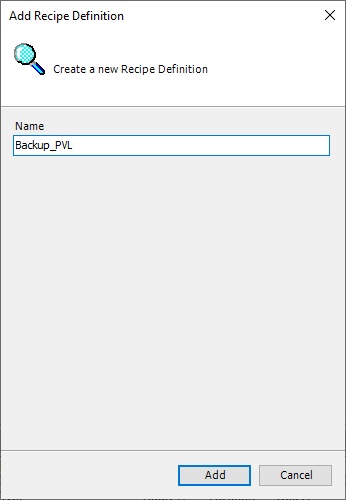
Since I am using the recipe manager to backup operator parameters stored in the PVL, I just call mine Backup_PVL.
Now we can right-click in the white pane, we get a right-click menu where we can choose to “Add a New Recipe”
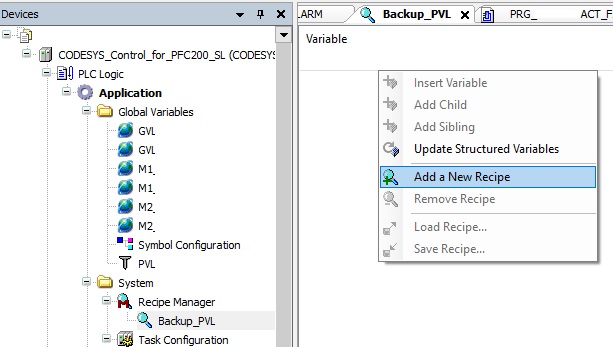
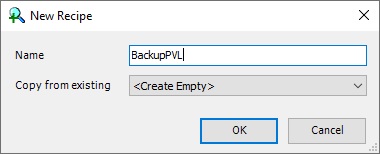
The recipe is a set of values for the variables that we put into the recipe definition. There can be multiply of these recipes, so be sure to give them a meaning name to your application. I am only going to have one, so its named BackupPVL.
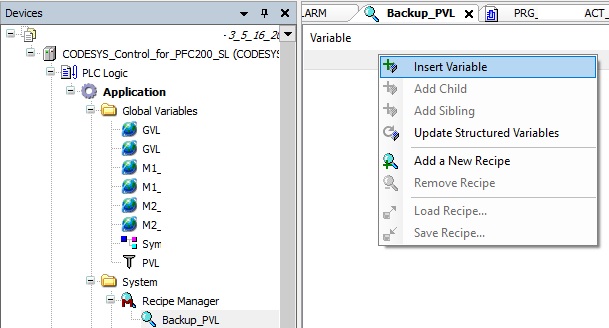
Now we can right-click in the white pane, at the top of the “first line”, to be able to select the “Insert Variable” menu item. If you only right-click at the white pane, you can not select this option.
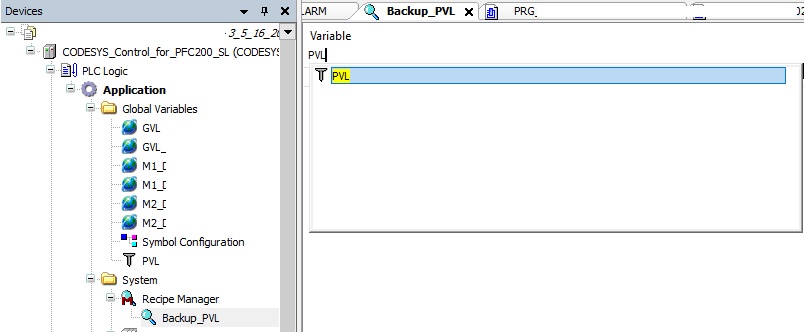
You can choose to add single variables or tagnames to add to the recipe. I want to make a backup of my complete persistent variables list and can do so by just adding the root structure PVL.
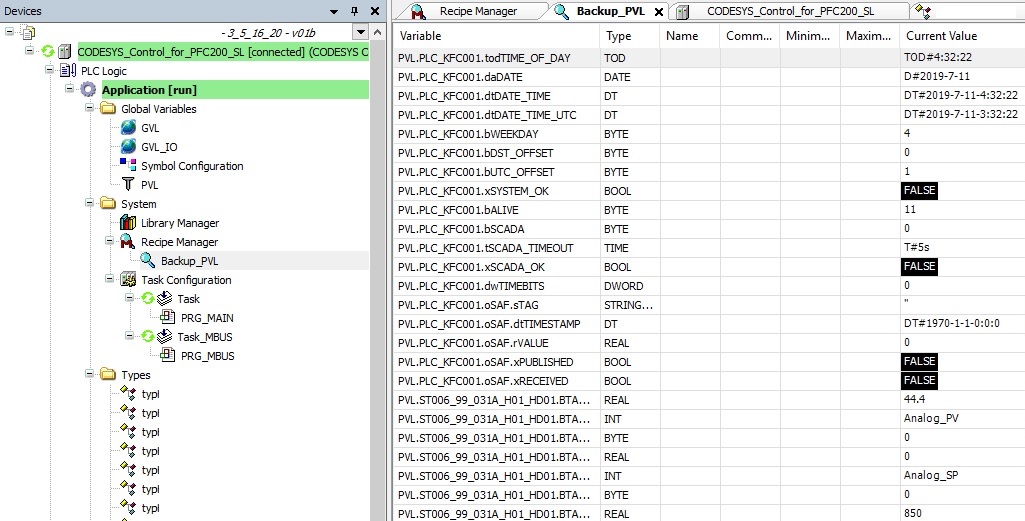
With Recipe Manager and recipe all setup it time to download the project with recipe manager to the PLC and go online. All the current values of the variables in the PVL is now shown.
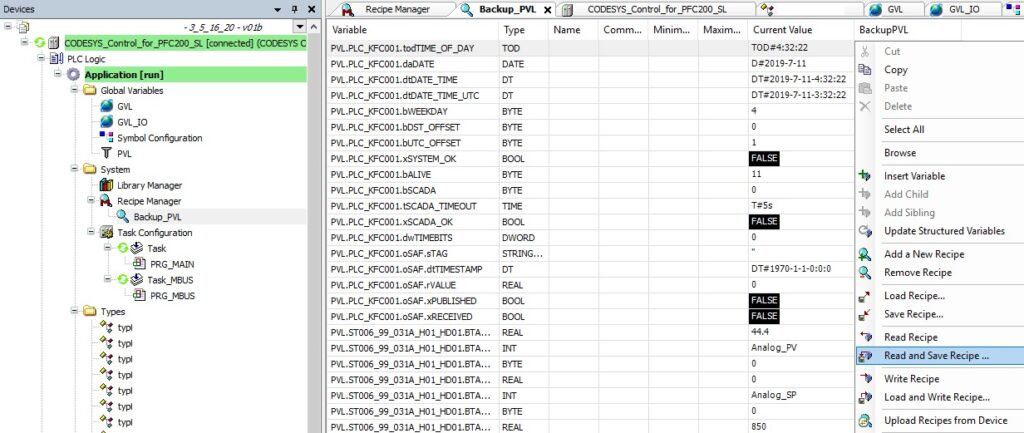
Right-click on the BackupPVL recipe and select “Read and Save Recipe…” in order to read the data from the PLC and save it in a offline file on your computer.
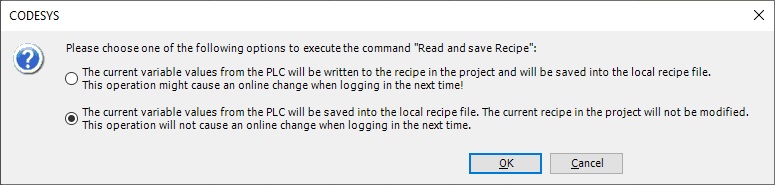
Codesys IDE now prompts you about 2 choices. To update the project file with the read recipe or to only save it on a file on your computer. The first option will result in a online change!
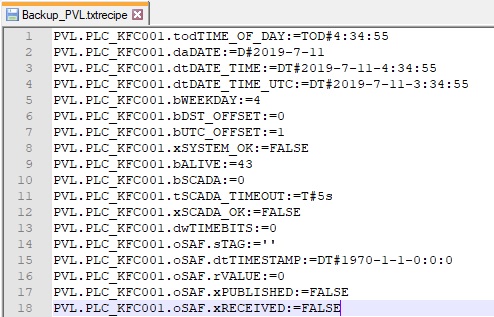
The backed up file contains all the variables from the PVL structure in a list of tags separated with := to values, you can now reuse this structure for programming.
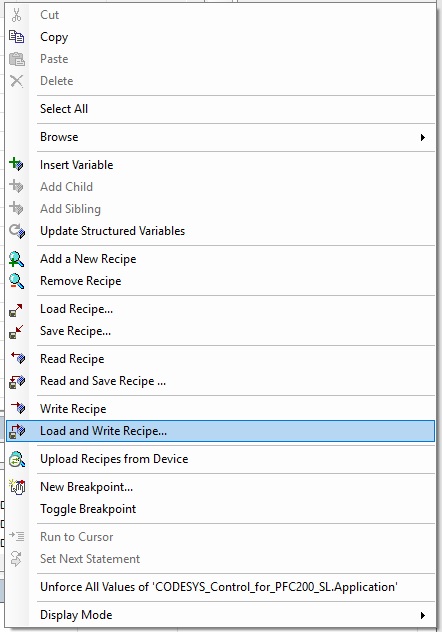
Loading a recipe from file to the controller can be done by right-clicking the recipe and select “Load and Write Recipe…” from the menu. From the dialog you select a previously made backup file and all the values with matching tagnames will be updated in the PLC.
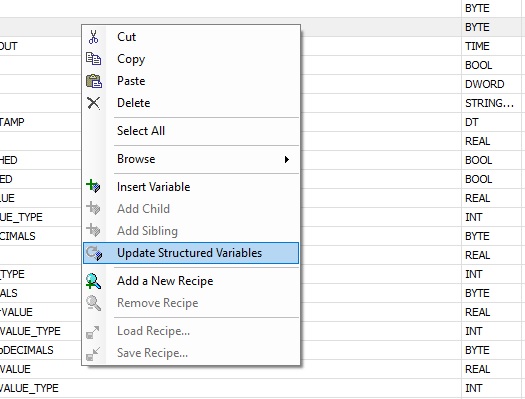
Adding new features, tagnames or functions in your PLC programs will also add new data into the PVL structure. To add or remove new/old tagnames from the recipe right-click on the recipe and select “Update Structured Variables”.
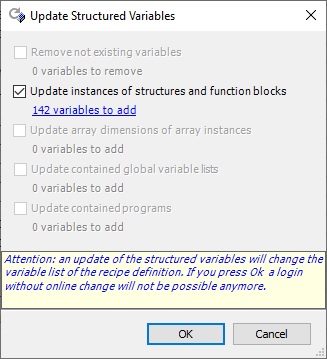
A popup dialog gives a resume of the changes found after scanning for updated variables.
You now have a method for reading, writing and updating a backup of all your user settings in a Codesys controller.
Discover more from SCADA, PLC and Automation Engineering
Subscribe to get the latest posts sent to your email.
Hi, Great tip. But the IDE wont allow me to select the PVL instance as a variable?
Hi Vegard
What if you double click on the first invisible line in the recipe and just write PVL and press enter?
Kind regards
Mads